EPRX balancing market
Tensor Cloud trades your batteries on the balancing market through EPRX, the market operator, for the offline primary reserve (FCR) product. Offers, plan files, award retrieval and cancellations all run automatically, every day including weekends and holidays. This page describes what Tensor Cloud does on your behalf and when, how cancellations work, which notifications you receive, and the EPRX screen where you follow the results. Open the screen from the side navigation under Revenue > EPRX.
The screen is read-only: you do not place or cancel offers there. Tensor Cloud submits offers through the market management system (MMS) that EPRX operates, using your workspace's EPRX credentials.
The workspace needs an active EPRX integration with Submit offers automatically turned on, and each battery must be registered as a resource in MMS. Contact us with the Get support button in the top navigation bar to set this up. Tensor also sets up the TSO contacts that cancellations are reported to for each grid area your resources are in.
What Tensor Cloud does automatically
Daily timeline
The balancing market is traded the day before delivery. EPRX accepts offers for delivery day D from 11:30 to 14:00 JST on D-1 and publishes the awards by 15:00 JST. Tensor Cloud works around that calendar:
| Time (JST) | What Tensor Cloud does |
|---|---|
| D-1, 11:31–13:58 | Submits offers for D from the latest optimization plan. Every new planning cycle inside this window updates the offers: a changed slot is withdrawn and offered again, and a slot the plan no longer offers is withdrawn. Every 5 minutes, it also reads back the offers registered in MMS. |
| D-1, 14:00–17:30 | Reads the award results from MMS every 5 minutes. Awards for D normally appear in Tensor Cloud shortly after EPRX publishes them. |
| Every planning cycle | Files the plan files for each resource and delivery day (see Plan files), until one hour before the awarded slot starts. |
| D | Sends each awarded slot's schedule to the battery's EMS, which holds the reserve and responds to frequency during the slot. |
| Every night | Reads the recent days' results from MMS again, to pick up anything that changed after the polling window. |
Outside these windows, Tensor Cloud does not query MMS, so the time of the last sync shown on the screen can be several hours ago (see Updated indicator).
What is offered
Offer volumes and prices come from Tensor's optimization model, based on the latest forecasts, for the next delivery day only. Tensor Cloud leaves out:
- Batteries that are not connected to an EMS in Tensor Cloud, since there is no battery to control
- Slots that overlap an event with operational impact on the asset's Timeline, such as planned maintenance. An offer already submitted for such a slot is withdrawn.
When you turn Submit offers automatically off, Tensor Cloud stops submitting new offers from the next planning cycle. Offers already in MMS and volumes already awarded are left as they are: Tensor does not withdraw them, so you have to do that in MMS yourself. Plan files continue to be filed either way.
Plan files
An award has to be backed by a plan registered with MMS one hour before the awarded slot starts. Tensor Cloud files, for each registered resource and delivery day:
- Generation plan (BP 0431): the planned output for every awarded slot. It is filed every day, also on days without an award, and refiled whenever the plan or the awards change.
- Baseline (BP 0132): for a battery that charges from the grid, the planned charging, covering the awarded slots and the hour before them.
Each filing replaces the previous one for that day, so MMS always holds the latest plan.
Cancellations
An award is a delivery obligation. When a battery can no longer deliver an awarded slot, Tensor Cloud cancels it with a cancellation request, which hands the slot's reserve to the TSO, rather than letting the slot fail its assessment. The market requires the request one hour before the slot starts, so Tensor Cloud submits it no later than 62 minutes before.
What triggers a cancellation
- State of charge: Twice an hour (at :25 and :55), Tensor Cloud checks each awarded slot starting about 65 minutes later. It projects the energy the battery will hold through that slot from its latest state of charge and its plan, and compares it with the energy the remaining awarded slots may need. If the battery would fall short, the slot is cancelled. For a battery that cannot charge from the grid, the cancellation also covers the following awarded slots until 90 minutes after the next sunrise, so the battery can recharge from solar first.
- Missing telemetry: When the battery's data stops reaching Tensor Cloud, it cannot confirm the battery will respond, so it cancels the battery's upcoming awards for that delivery day.
- Maintenance: When you create or change an event with operational impact on the asset's Timeline, Tensor Cloud cancels every award that overlaps the event and starts more than 67 minutes later. Awards made later for a period already covered by such an event are cancelled the same way.
An event entered less than about 67 minutes before a slot starts is too late for any of these: the request can no longer reach the market in time.
What happens next
- Tensor Cloud submits the cancellation request to MMS and waits for the TSO to confirm it.
- It refiles the day's generation plan with the cancelled slots set to zero. The other awarded slots keep their plan.
- It emails Form 23 (様式23, yōshiki 23, the TSO's form for this notice) to the TSO, one per delivery day. The contact email of your EPRX integration is in copy and is the reply-to address, so the TSO's answer reaches you.
- Where the TSO takes these notices by phone, an automated call reports the cancellation to the TSO's line.
- It sets the cancelled slots of the battery's EMS schedule to zero.
- Workspace members are notified by email (see Notifications).
If the request cannot be submitted before the cutoff, nothing is cancelled: the award stands and is assessed as usual. The screen shows this in the slot's lifecycle.
Cancellation penalty
A cancelled slot keeps its ΔkW revenue, and the market charges a cancellation penalty of award price × cancelled quantity × 1.5. Tensor Cloud calculates the penalty per slot and shows it separately from revenue, on the EPRX screen and as a cost on the revenue dashboard. The amounts are Tensor's calculation, not the TSO's settlement.
Notifications
| Event | Who is notified |
|---|---|
| New awards | Workspace members who receive Alerts by email: one email per delivery day as the awards arrive |
| Cancellation | Workspace members who receive Alerts by email: one email per cancellation |
| Form 23 sent to the TSO | The contact email of the EPRX integration, in copy of the email to the TSO |
| EPRX registration expiring | Workspace members who receive Reminders: from 30 days before the registration's expiry date, more often as the date approaches |
Choose the channels in your notification settings. Successful offers and plan files send no notification; you can check them on the EPRX screen.
The TSO's own assessment results arrive by email from the TSO and are not part of Tensor Cloud.
EPRX screen
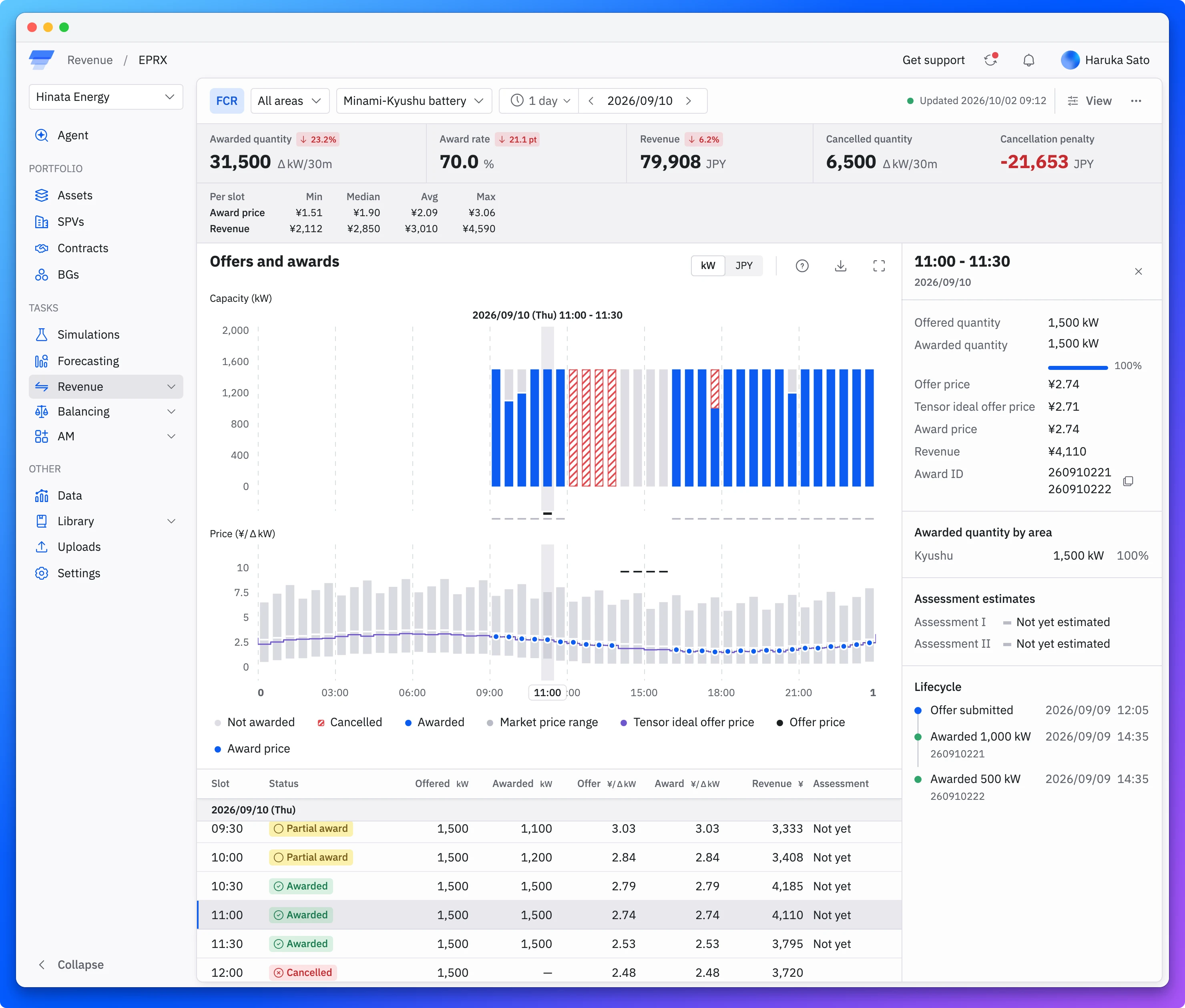
Selecting a battery and period
Choose a battery at the top of the screen. The list holds the batteries in the workspace that are registered as EPRX resources. The product is primary reserve (FCR). A battery that has left EPRX is not listed, and its past results are not shown.
Choose the period with the date range picker: 1 day, 1 week, 1 month, YTD, or a custom range, going back to April 2024, when FCR trading on EPRX started. Ranges of up to 31 days show 30-minute slots. Longer ranges, up to two years, show one bar per day: double-click a day, or select it and choose Show details, to open that day at 30-minute slots. The Back chip returns to the full range.
Updated indicator
The indicator at the top right shows the time of the last sync with EPRX (JST). Hover over it for the details:
- Updating: a sync is running
- Could not update: the last sync failed. The figures are as of the last successful sync and update after the next one.
- Not synced yet: no sync has completed for this workspace
The tooltip also says when awards in the range can still be cancelled, and that assessment results, revenue, and penalties are Tensor's calculation. While the range reaches today or tomorrow, the screen refreshes itself every minute.
Summary bar

The summary bar totals the selected battery and period:
- Awarded quantity (ΔkW/30m)
- Award rate: awarded quantity divided by offered quantity
- Cancelled quantity (ΔkW/30m)
- Revenue: ΔkW revenue, awarded quantity × award price
- Cancellation penalty
Next to each figure, a chip compares it with the previous period of the same length. A Per slot row gives the minimum, median, average, and maximum award price and revenue per slot.
Offers and awards chart
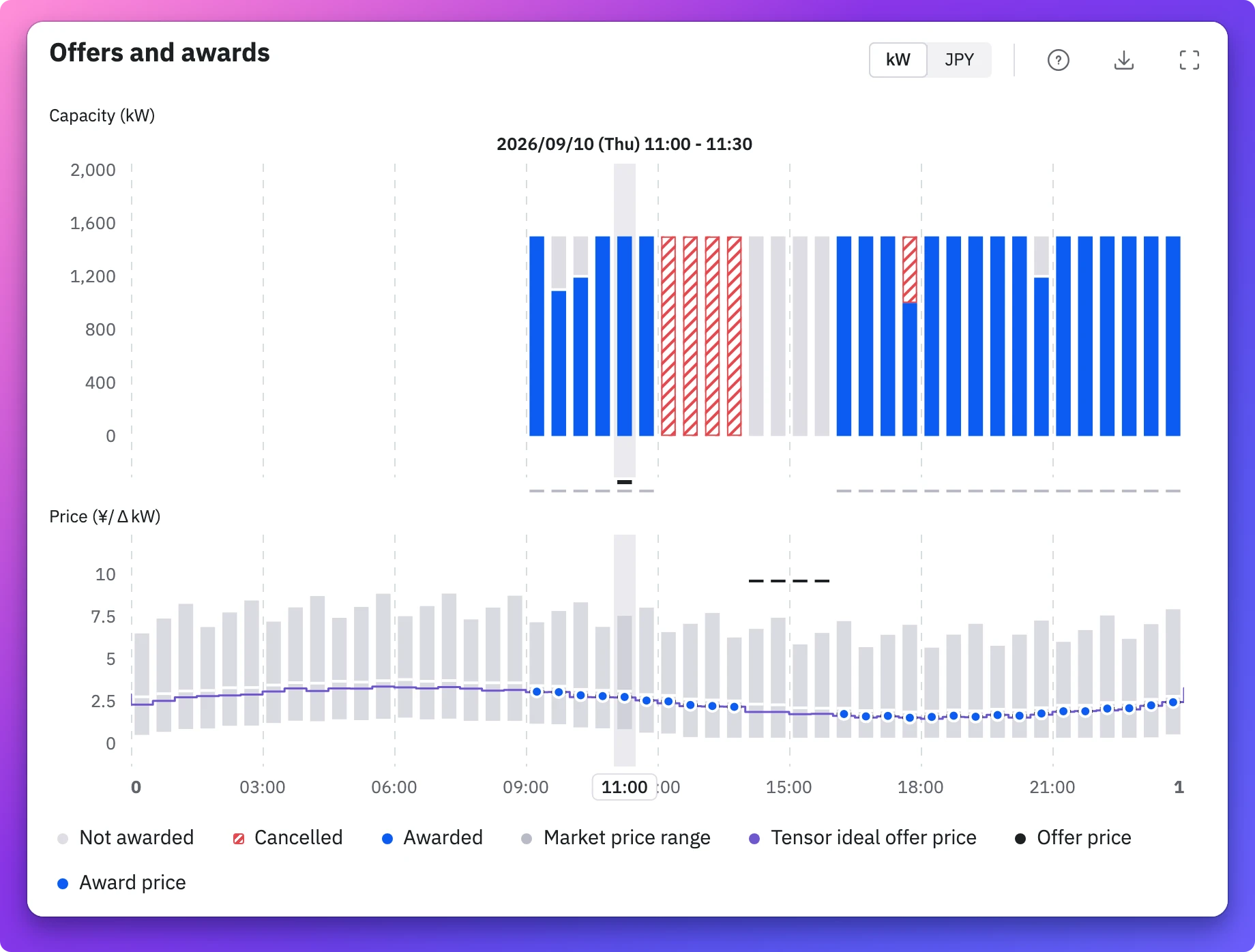
The chart shows the period on a shared time axis in two panels:
- Capacity (kW per slot, or ΔkW/30m per day): bars for awarded, not awarded, cancelled, and rejected quantity. Slots still waiting for results are drawn as dotted bars. Switch the top panel to revenue (¥) to see revenue and cancellation penalty instead; that view becomes available once results are published.
- Price (¥/ΔkW): your offer price, award price, the market price range (lowest to highest award price in the market), and the Tensor ideal offer price, the price Tensor's model recommended on the day before.
A strip under the bars shows the assessment estimates. Click a series in the legend to show or hide it, and click a bar to select its slot or day. The chart menu downloads the chart as an image and opens it full screen.
Slot table
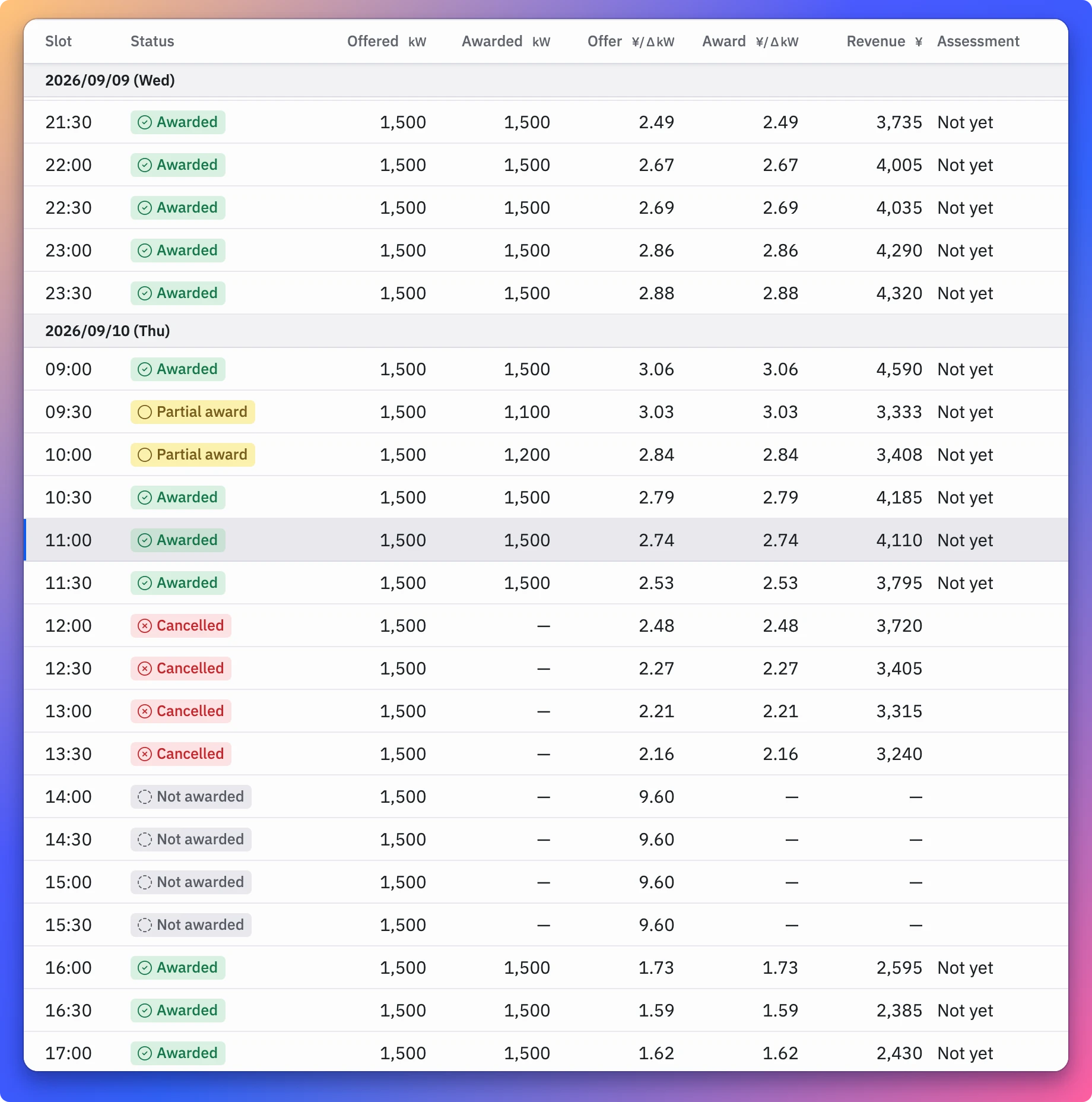
Below the chart, a table lists each slot (or day) of the period:
| Column | Description |
|---|---|
| Slot or Day | 30-minute slot, or the day in longer ranges |
| Status | See Statuses |
| Offered (ΔkW/30m) | Quantity offered to EPRX |
| Awarded (ΔkW/30m) | Quantity awarded |
| Offer (¥/ΔkW) | Offer price |
| Award (¥/ΔkW) | Award price |
| Ideal (¥/ΔkW) | Tensor ideal offer price |
| Revenue (¥) | ΔkW revenue |
| Penalty (¥) | Cancellation penalty |
| Assessment | Assessment estimate |
Use the View menu to hide chart panels, the summary bar, or table columns. The chart, the table, and the details panel always show the same selected slot.
Statuses
| Status | Meaning |
|---|---|
| No offer | No offer was submitted for the slot |
| Offer submitted | The offer is in MMS and results are not published yet |
| Rejected | MMS did not accept the offer. The details panel gives the reason. |
| Not awarded | The offer was not awarded at the auction |
| Partial award | Less than the offered quantity was awarded |
| Awarded | The full offered quantity was awarded |
| Partially cancelled | Part of the awarded quantity was cancelled |
| Cancelled | The whole awarded quantity was cancelled |
Details panel
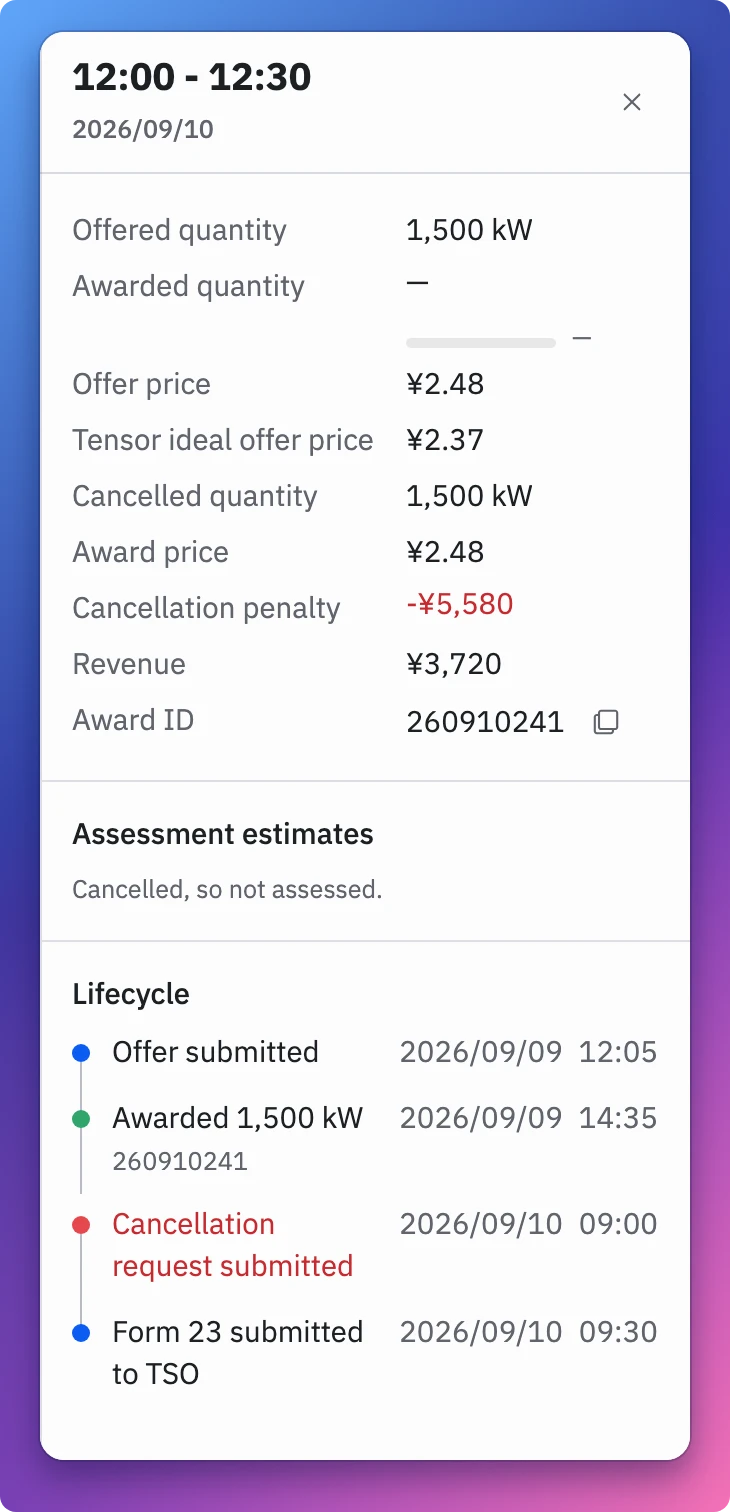
Select a slot or day to open the details panel on the right. It shows:
- The offered, awarded, and cancelled quantities, the offer and award prices, the Tensor ideal offer price, revenue, and the cancellation penalty with its calculation
- The award ID, which you can copy to look up the award in MMS
- Awarded quantity by area, when TSOs in more than one grid area share the award
- The lifecycle of the slot, with times: offer submitted, rejected by MMS (with the reason), awarded, cancellation request submitted, and Form 23 submitted to the TSO. A cancellation that could not be made appears here too, for example Cancellation not submitted · cutoff passed, followed by The award stands and is assessed as usual.
- The assessment estimates for the slot
Assessment estimates
For every awarded slot, Tensor Cloud estimates from the metered output whether the battery passes Assessment I and Assessment II: Pass, Fail, or Not yet estimated until the meter data is in. A day shows the worst status among its slots, and the tooltip counts them. Cancelled slots and slots without an award are not assessed. These are Tensor's estimates; the TSO's own results arrive by email and are not shown.
Downloading results
The ⋯ menu at the top right offers:
- Download results: a CSV file of every slot in the selected range
- Copy link: a link to the screen with the current battery and range
- Open EPRX settings: the EPRX integration settings